
Volunteers who have expressed an interest in an ongoing opportunity, either at a volunteer recruitment event or in Community Hub will appear in your Opportunity Queue.
Where To Go
There are two ways you can access the Opportunity Queue.
- Click the Opportunity Queue button underneath your name on your homepage. This will appear if any volunteers have been referred to you, even if you aren't a full Administrator.

- Navigate to to Administration -> Volunteer Management -> Opportunity Queue
Sorting the Queue
If you are an administrator, you can see all of the opportunities that volunteers in your Community have applied for, regardless of if they have been referred or assigned to you. You can use any of the filters at the top to see just a specific position/opportunity, search for an individual volunteer, or by progress status or date.

You can use the headings on each column to sort the list in different ways. By default, the list is sorted by the date that the opportunity was submitted.

Managing and Opportunity
To open an individual opportunity to make updates or track progress, click Update Status next to the opportunity. This will bring you to the Volunteer Referral Form. This is the complete record for that volunteer's interest in that opportunity. It can be updated as many times as you want/need to, and will contain a running log of the progress towards that opportunity.
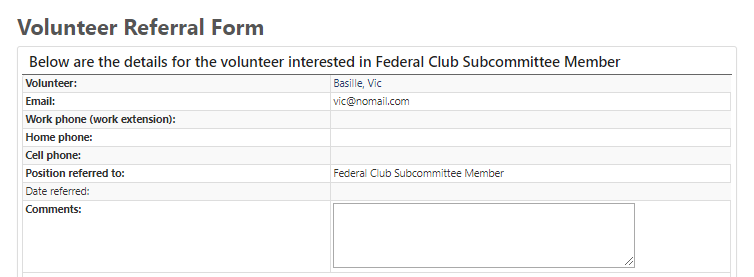
The top of the form has some information from the Volunteer's Profile. Whatever contact information is in their Community Hub account will appear here, as well as the position they are interested in. You also have a free comment space where you can make notes about the volunteer's interest in the position.
NOTE: The comments here are visible to any administrator, and anyone who is included on the referral. They will also be included in an email notification to anyone added to the referral. If the volunteer ever receives administrative permissions, they will also be able to see this. So ensure anything you include here isn't confidential or detrimental.
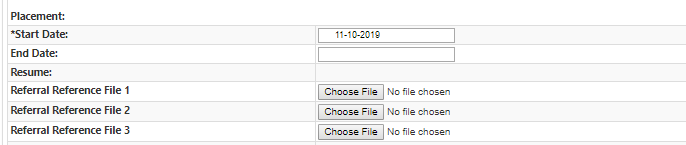
The next section includes information about the volunteer and the position. Start Date defaults to today's date, and is what the position begin date will be on the volunteer's profile once they have been accepted. If you know that the position will end after a certain period (such as a Dinner Co-Chair) you can include an End Date to automatically inactivate the position after that time. If the Volunteer has a Resume that they have uploaded to their Community Hub account, it will be linked here. You also have the opportunity to attach up to three documents as Referral Reference Files if there are relevant documents (such as recommendation letters or letters of interest).

The next three fields have to do with who is responsible for reaching out and working with the volunteer. There are three fields, Refer to, Assigned to, and CC Email to. Anyone added to one of these fields will have access to see and update the referral form, and will also receive an email with all of the information in it.
- Refer To: This is the person who has the overall accountability for this person/position. This is the first person who is assigned.
- Assigned To: This can be someone that the Refer To person can delegate to be responsible for working with the volunteer on the person/position.
- CC Email To: This person receives a notice when the referral is created, accepted, or rejected. They don't have any direct responsibility for the referral, but can follow along. As a best practice, someone from Volunteer Engagement should be included here.

The Progress Status and Progress Date allow you to keep track of your efforts to engage the volunteer in this position, and create a running timeline. Each time you save a new status/date, it will be added to the "Progress History" at the bottom of the page.
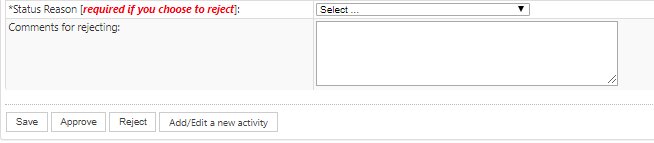
At the bottom of the form, there are a series of buttons. Save will save any updates you have made, and add the updated progress status and date to the bottom of the page. Approve will close out the referral to any additional updates, add the position to the volunteer's profile, and send a notice to the Refer to, Assigned to, and CC Email to people. Reject will close out the referral and reject the interest. If you reject a referral, you have to include a status reason for rejecting, and have the option of including comments.
NOTE: The comments here are visible to any administrator, and anyone who is included on the referral. They will also be included in an email notification to anyone added to the referral. If the volunteer ever receives administrative permissions, they will also be able to see this. So ensure anything you include here isn't confidential or detrimental.
Comments
0 comments
Please sign in to leave a comment.