
Some of the reports you will be able to access from the Query Tool are in an interactive format. You'll know it's an interactive report if you see the tools across the top of the screen.
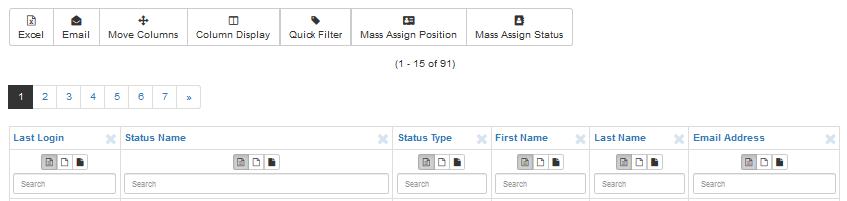
NOTE: Interactive reports are only available by going to Administration -> Volunteer Management -> Query Tool. They are NOT available from the My Reports menu.
Filters
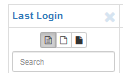
The filters at the top of each column allow you to change what parts of the report are visible. These filters will also apply to any of the actions you take using the top menu bar.
 - Show All - by default you see every row, whether the field is full or empty
 - Show Blank - filters to only show the rows that are blank in that column
 - Show Non-Blank - filters to only show the rows that are not blank in that column
 - Allows you to search that field for specific words/phrases
Top Menu Bar

The top menu bar allows you to work with the list that you have filtered using the filters.
- Excel: Downloads an excel document with the data in the report
- Email: Brings you to the Email tool and will email the people included in the report as you have filtered it
- Move Columns: You can change how the report shows so that the columns are in a different order
- Column Display: You can choose to not see certain columns
- Quick Filter: Search the entire report for a word or phrase
- Mass Assign Position: You can assign or end a position for all volunteers included in the report as you have filtered it
- Mass Assign Status: You can change the status for all volunteers included in the report using this tool
Comments
0 comments
Please sign in to leave a comment.